Nobody talks about this enough, and consequently it causes problems on almost every project where it gets skipped.
Most people accept Revit models the wrong way. They open the file, spin around in the 3D view for a minute or two, and check that the building roughly resembles what it should. After flipping through a couple of floor plans, they sign off. It looks like a building. Nothing seems obviously wrong. Good enough.
Three months later, however, when drawings are going out, or coordination is running, something surfaces that traces directly back to a model issue sitting there at acceptance that nobody caught. The warnings nobody cleared. The families with wrong category assignments corrupting every schedule they appear in. The level setup was slightly wrong on one floor and has been compounding the error ever since.
This is not a rare situation. It happens constantly. And importantly, it is almost entirely avoidable if you know what to actually look for when a model lands in your inbox.
Forget the 3D View. Start With the Structure.
The 3D view is seductive. It shows you a building, it looks like progress, and yet it tells you almost nothing about whether the model is actually built correctly underneath.
Open the project browser first. This is where the bones of the model live and where most serious problems hide.
Look at the level setup carefully. Are levels named correctly and consistently? Do the heights match what the project requires? On a multi-storey building, a level sitting off by even a small amount carries that error through every floor above it. It sounds minor until you are trying to coordinate a structural model against an architectural one and the floors simply do not align.
Check the grids next. Do they carry consistent names and match the structural grid? If this model links against other discipline files, grid alignment between them is not optional. Misaligned grids between linked models quietly cause coordination failures, quiet because they are hard to spot visually, but loud because of what they do to clash detection accuracy.
Then check the shared coordinates. If other discipline models link into this one, they all need to share the same origin. Ask the BIM team how they set this up, then verify it yourself. A coordinate offset between linked models looks fine until someone runs clash detection and nothing lines up the way it should.
The Families Tell You More Than the Geometry Does
Here is something that takes a while to learn but completely changes how you review models once it clicks.
The geometry shows you what the model looks like. The families, however, show you whether the model actually works.
Open the project browser and look at the families loaded into the file. Do they carry clear names and do their categories match what they actually represent? A door family sitting in the wrong category will never appear in a door schedule. Similarly, a structural column with the wrong category assignment behaves incorrectly in coordination exports and structural analysis workflows. These are not cosmetic problems, they affect every piece of documentation the model produces.
Pick a selection of placed families across different element types and check their properties. Do the parameters populate correctly and do the type parameters make sense for the project? Then open a schedule for something important, doors, structural columns, or windows, and look at what comes out. Blank fields and error values in a schedule mean something is wrong with the families behind it, and the model is telling you directly.
One more thing worth asking the BIM team directly, did they build these families custom for the project or load them from generic libraries? Neither answer is automatically a problem. However, knowing which one sets your expectations correctly for how much data the model carries and how reliably it will behave throughout the project.
Walk Through the Views Properly
A Revit model lives in its views. Moreover, views drive documentation, coordination, and most of the day-to-day project work. Checking them properly takes time, and that time is always well spent.
Open plans at multiple levels. Do elements display correctly, and do warning symbols appear on elements that should not carry them? Check that elements appear in the right display style for the view scale. Then open sections and elevations and check whether they cut through the model correctly. A section showing elements floating or cutting incorrectly through a wall tells you the model geometry has issues that will show up in every drawing from that view.
Look at the view templates next. Do similar view types carry consistent templates? Inconsistent templates produce drawings that look different from each other for no good reason, different line weights, different annotation styles, and different levels of detail. Furthermore, that inconsistency slows down documentation and confuses anyone reviewing the drawing set.
If the team has set up sheets, check the sheet list. Do sheets follow consistent naming and numbering conventions, and do views sit correctly on sheets without overlapping or misaligned viewports? These feel like small details until you are producing a hundred sheets under deadline pressure and the sheet setup is a mess that nobody has time to fix.
Open the Warnings and Actually Read Them
Every Revit model carries warnings. The real question is what kind and how many.
Go to the Manage tab and open Review Warnings. Look at the list carefully. A handful of minor warnings on a large model is completely normal. Hundreds of unresolved warnings, however, signal that model health has not been a priority during the build.
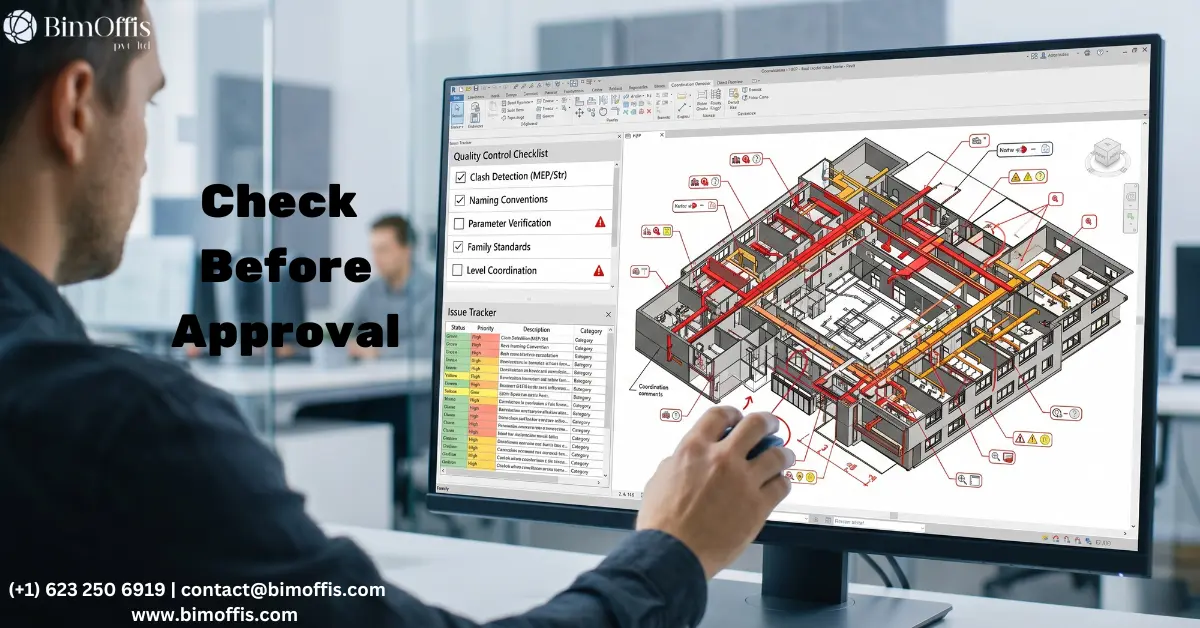
The ones worth taking seriously include overlapping geometry between elements, rooms that are not properly enclosed, structural elements without correct connections, and duplicate elements sitting on top of each other. These are not cosmetic warnings, they affect how the model behaves in documentation, in coordination, and in any analysis workflow pulling data from it.
Therefore, ask the BIM team for a warnings report before you accept the model. Ask them to resolve the serious ones before handover. A team that takes model quality seriously already manages warnings as part of their ongoing process. In contrast, a team that sends you a model with four hundred unresolved warnings and no explanation is telling you something important about how they actually work.
Test the Coordination Before You Need It
If this model links against other discipline models, test it before accepting rather than after.
Link in the structural model or the MEP model and look at how they sit together. Do the levels align properly, the grids overlay correctly, and the elements sit at the right heights relative to each other? You can spot a coordinate offset in about thirty seconds in a combined view. Finding that offset now costs nothing. Finding it when clash detection is already running, on the other hand, costs time, trust, and often a delay nobody budgeted for.
Additionally, check the copy and monitor setup if it applies. Monitoring structural columns and levels between architectural and structural models flags when changes in one model affect the other. Without correct setup, the models can drift apart through design development and nobody receives the alerts they should be getting.
Ask for the Model Health Report
This request tells you immediately whether you are dealing with a team that takes model quality seriously or one that rarely thinks about it.
A model health report covers file size relative to scope, warning count, number and type of families loaded, number of in-place families, workset structure, and any known issues the team is aware of. Each item, therefore, tells you something useful about how the model was built and maintained.
File size significantly larger than the scope justifies often means imported geometry, unnecessary families, or content that came in at some point and never got cleaned out. In-place families, the ones modeled directly inside the project rather than built as separate family files, deserve a specific question. A few on a complex project is completely fine. A model full of them, however, suggests the team was modeling quickly and pragmatically rather than building content that will serve the project properly over time.
Have the Actual Conversation
A model review is not just technical due diligence. It is, in fact, a conversation between two teams who both want the project to go well.
When you find things during the review, bring them to the BIM team specifically and clearly. Not as complaints, but rather as a list of things needing resolution before the model goes into production. Be clear about what you found, why it matters for the project, and what needs to change before you accept. A good team responds professionally, fixes the issues promptly, and genuinely appreciates that the review caught things before they became downstream problems.
Furthermore, use the review conversation to confirm the model is ready for whatever comes next. Clash detection starting? Confirm the coordinate setup is solid. Documentation beginning? Confirm view templates and sheets are in order. Model going into a CDE? Confirm naming conventions and file structure match the project requirements.
The Bottom Line
Accepting a Revit model without reviewing it properly is a quiet risk that compounds over time. Small problems at acceptance become documentation problems, documentation problems become coordination problems, and coordination problems become site problems. The cost grows at every step.
Therefore, check the structure, check the families, walk the views, read the warnings, test the coordination setup, and ask for the health report. Then have the conversation about what needs fixing before you sign off.
A model that passes a proper review is a model you can actually build on confidently. That confidence, ultimately, is worth every minute the review takes.
Ready to find out what your project will cost? Find out here.
Frequently Asked Questions from Clients
Why is reviewing a Revit model before accepting it important?
Problems at acceptance grow into documentation issues, then coordination failures, then site problems. Catching them early costs almost nothing. Catching them later costs a lot.
What should I check first in a Revit model review?
Start with levels, grids, and shared coordinates, not the 3D view. These fundamentals affect everything built on top of them.
Why do families matter so much in a model review?
Families control how the model schedules and documents. Wrong categories and missing parameters corrupt documentation in ways the geometry never shows.
How do I check if the coordination setup is correct?
Link in a discipline model and check whether levels, grids, and elements align visually. A coordinate offset shows up immediately, find it now, not during clash detection.
What is a model health report?
It covers file size, warning count, family types, and known issues. Always ask for one, how a team responds tells you exactly how seriously they take model quality.
What should I do when I find issues during the review?
Bring them to the BIM team as a clear list of things needing resolution before acceptance. A good team fixes them promptly and appreciates that the review caught them early.