This Problem Comes Up on Almost Every Project
You have a set of PDF floor plans sitting in your inbox. Maybe they came from an older project. Maybe a client sent them over because the original CAD or Revit files are nowhere to be found. Maybe the drawings were scanned from paper and saved as PDFs decades ago.
Whatever the reason, the ask is always the same. Take these PDFs and turn them into a proper BIM model that the team can actually work from.
Sounds straightforward. And in theory it is. But anyone who has actually done PDF to BIM conversion on a real project knows there are a hundred places where things can go wrong.
Walls end up at the wrong thickness. Dimensions do not match. Details that were clear on the PDF somehow get lost or misread during the conversion process. And by the time someone catches the error, work has already been done based on bad information.
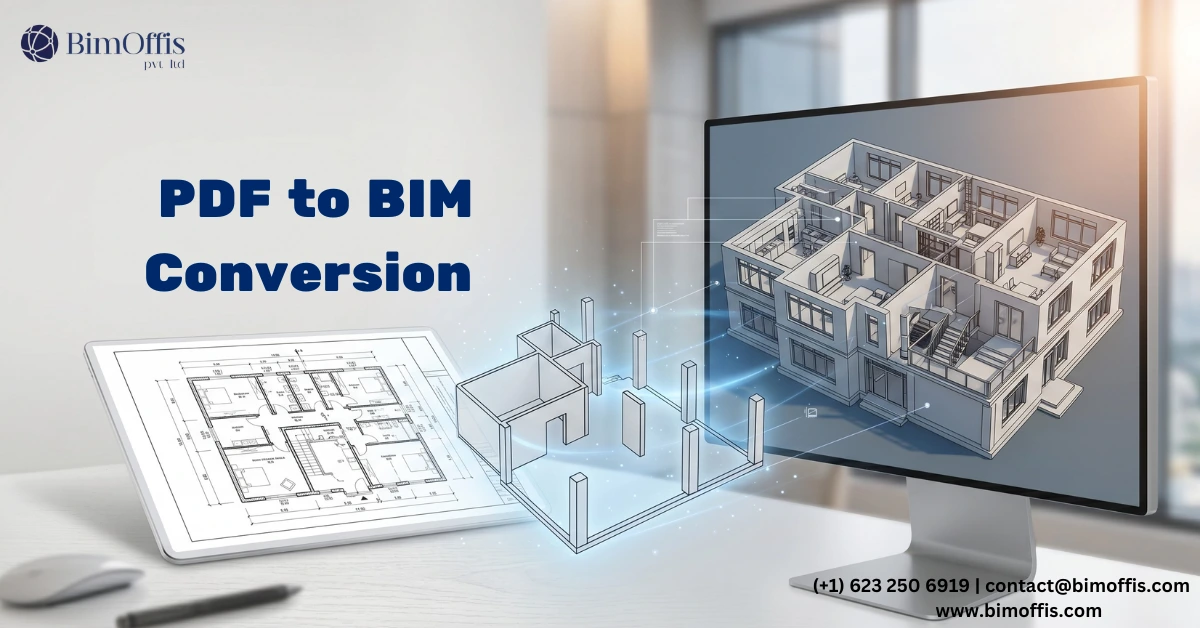
This post is about how to do this properly. How to take a PDF floor plan and convert it into a BIM model that is accurate, usable, and something the whole project team can actually rely on.
Why PDF to BIM Conversion Is Trickier Than It Looks
PDFs Were Never Meant to Be Modeled From
Here is something worth understanding before you start. A PDF is essentially a picture of a drawing. It might look crisp and detailed on screen, but underneath it is just a flat image. There is no intelligence in it. No layers, no dimensions that a computer can read, no information about what is a wall versus what is a line on a floor finish plan.
When you bring a PDF into Revit or any other BIM authoring tool, you are starting from scratch in terms of building intelligence into that drawing. The PDF gives you a visual reference but nothing more.
This is why PDF to BIM conversion takes real skill and attention to detail. You are not just tracing lines. You are interpreting a drawing, making decisions about what everything represents, and building a model that carries real information about the building.
Common Problems That Cause Accuracy Issues
Scale errors
PDFs do not always come with reliable scale information. A drawing that says it is on a 1-to-100 scale might not actually be when you measure it digitally. If you start modeling from an incorrectly scaled PDF, everything downstream will be wrong.
Scan quality issues
Scanned PDFs are often blurry, skewed, or missing details. Lines that should be crisp are fuzzy. Dimensions are hard to read. Walls that should be straight have a slight curve from the scanning process. All of these things introduce inaccuracy if you are not careful.
Missing information
PDF floor plans rarely tell you everything you need to know to build a BIM model. Wall thicknesses, ceiling heights, structural details, MEP routing, a lot of this information simply is not on a standard floor plan PDF. You need to know what you are looking at and what questions to ask when information is missing.
Interpretation errors
Two people can look at the same PDF and interpret it differently. Is that a structural wall or a partition? Is that a column or a chase? Is that dimension to the face of the wall or to the centerline? These decisions matter, and they need to be made deliberately, not guessed at.
The Right Way to Approach PDF to BIM Conversion
Step One: Audit the PDFs Before You Start Anything
Before a single line gets drawn in Revit, sit down with the PDFs and go through them properly. Check every sheet. Look for inconsistencies between plans. Check that the dimensions add up. Make a list of everything that is unclear, missing, or contradictory.
This audit step feels like extra work, but it saves enormous amounts of time later. The problems you catch here cost nothing to fix. The problems you discover after two weeks of modeling cost a lot of time and rework.
Things to check during your audit include the following.
Are all floor plans present and accounted for? Do the plans match each other where they should? Are dimensions legible and consistent? Is there a clear indication of scale? Are there any notes or legends that explain elements on the plan? Are there elevation or section drawings that can fill in missing information?
Step Two: Set Up the Scale Correctly
This is non-negotiable. Before you start tracing anything, you need to confirm that the scale of the PDF is accurate.
Bring the PDF into your software and check known dimensions against what the drawing states. If a room is dimensioned at five meters wide, measure it on screen and confirm it matches. If it does not, adjust the scale until it does.
Never assume the PDF is correctly scaled just because it says so on the drawing. Always verify with a known dimension before you start modeling. A scale error that goes undetected at the start will corrupt every measurement in the model.
Step Three: Understand the Drawing Before You Model It
Spend real time reading the PDF before you start building anything in Revit. Understand what type of building it is. Understand the structural system. Read the notes and legends. Look at any sections or elevations that came with the package.
The more you understand the building before you start modeling it, the better the decisions you will make as you go. Modeling is full of small interpretive decisions, and the only way to make them correctly is to understand what you are looking at.
Step Four: Model in the Right Order
When you are ready to start building the model in Revit, work in a logical sequence. Do not jump around between elements.
Start with grids and levels
Set up your structural grid and your floor levels first. Everything else in the model references these, so they need to be right before anything else gets placed.
Model structural elements next
Columns, structural walls, and slabs come before anything else. These define the skeleton of the building, and everything else fits around them.
Add architectural elements
Partition walls, doors, windows, stairs, and other architectural elements come next. Reference the PDF carefully for placement and make sure dimensions are being checked as you go, not assumed.
Add room and space information
Once the walls are in place, add room boundaries and room information. This is where the model starts to carry data beyond just geometry.
Layer in MEP if required
If the scope includes mechanical, electrical, and plumbing elements, these come last and are modeled based on whatever information the PDF package includes about those systems.
Step Five: Check Everything Against the PDF
This sounds obvious, but it genuinely gets skipped on busy projects. Once a section of the model is complete, go back to the PDF and check it. Measure key dimensions in the model and compare them to what the drawing shows. Check room sizes. Check wall positions relative to grid lines. Check door and window locations.
Do not wait until the whole model is finished to do this checking. Check as you go, section by section, floor by floor. Catching a modeling error on one floor before you replicate it to every other floor saves an enormous amount of time.
Things That Will Kill Your Accuracy
Rushing the Setup
The biggest mistake people make in PDF to BIM conversion is rushing through the setup to get to the actual modeling. Getting the scale wrong, not reading the drawings properly, skipping the audit step, these are the things that cause real accuracy problems. The setup is not overhead. It is the foundation of everything that comes after.
Not Asking Questions When Something Is Unclear
If something on the PDF is not clear, ask. Do not guess and move on. A question that takes five minutes to ask and answer is always better than a modeling decision that turns out to be wrong and needs to be undone across an entire model.
Ignoring Inconsistencies Between Sheets
Floor plans often have small inconsistencies between sheets. A dimension that does not quite match on two different plans. A wall that appears in one drawing but not another. These need to be flagged and resolved before the model is built, not discovered later when someone is trying to coordinate with it.
Treating the PDF as Gospel
A PDF floor plan is a reference document. It is a starting point. It is not infallible. Dimensions can be wrong. Information can be missing. Details can be outdated. Good PDF to BIM conversion means using the PDF intelligently, not blindly tracing everything on it and assuming it is correct.
What Good PDF to BIM Conversion Actually Delivers
When the process is done properly, the result is a BIM model that the whole project team can actually use. Architects can work from it for design development. Engineers can use it for analysis and coordination. Contractors can reference it for construction planning. And the owner ends up with a model that accurately represents their building.
The accuracy of the output is directly connected to the quality of the process. A rushed conversion produces a model full of errors that nobody trusts. A careful, methodical conversion produces a model that becomes a genuine asset for the project.
Final Thought
PDF to BIM conversion is one of those tasks that looks simpler than it is. The technical part, opening a PDF and modeling from it, is not complicated. The hard part is doing it accurately and consistently across a whole set of drawings while making good decisions about everything the PDF does not explicitly tell you.
Take the time to set things up properly. Audit the drawings before you start. Verify the scale. Understand the building. Check your work as you go. Do those things, and the model you end up with will be something the team can genuinely rely on throughout the project.
Ready to find out what your project will cost? Find out here.
Frequently Asked Questions from Clients
What is PDF to BIM conversion?
Taking a PDF floor plan and converting it into a working BIM model.
Why not just work from PDFs?
PDFs are flat images with no intelligent data. BIM models carry real building information.
How accurate is the conversion?
It depends on the PDF quality and the skill of the person doing the conversion.
What is the biggest mistake during conversion?
Rushing the setup and not verifying the scale before starting.
How do we handle missing information?
Always ask questions. Never guess and never assume.
What software is used?
Autodesk Revit is the most commonly used tool for PDF to BIM conversion.