Revit Family Creation Explained Without the Confusing Technical Talk
Nobody warned me how confusing Revit families would feel in the beginning. The concept itself is not difficult. In fact, once it clicks, it becomes surprisingly logical.
The real problem is that most tutorials immediately jump into tools, buttons, and settings without explaining why Revit families matter in the first place.
So instead of turning this into another software manual, let’s keep it simple and practical. If you understand how Revit families actually work, your entire BIM workflow becomes easier to manage.
Just a straight conversation about Revit family creation, what it is, how it works, and why getting it right changes everything about how your projects run.
What Is a Revit Family?
The easiest way to understand a Revit family is this: almost every object inside a Revit model belongs to a family.
For example, doors, windows, furniture, columns, lighting fixtures, and plumbing elements are all families. However, they are not just simple 3D objects sitting in the model.
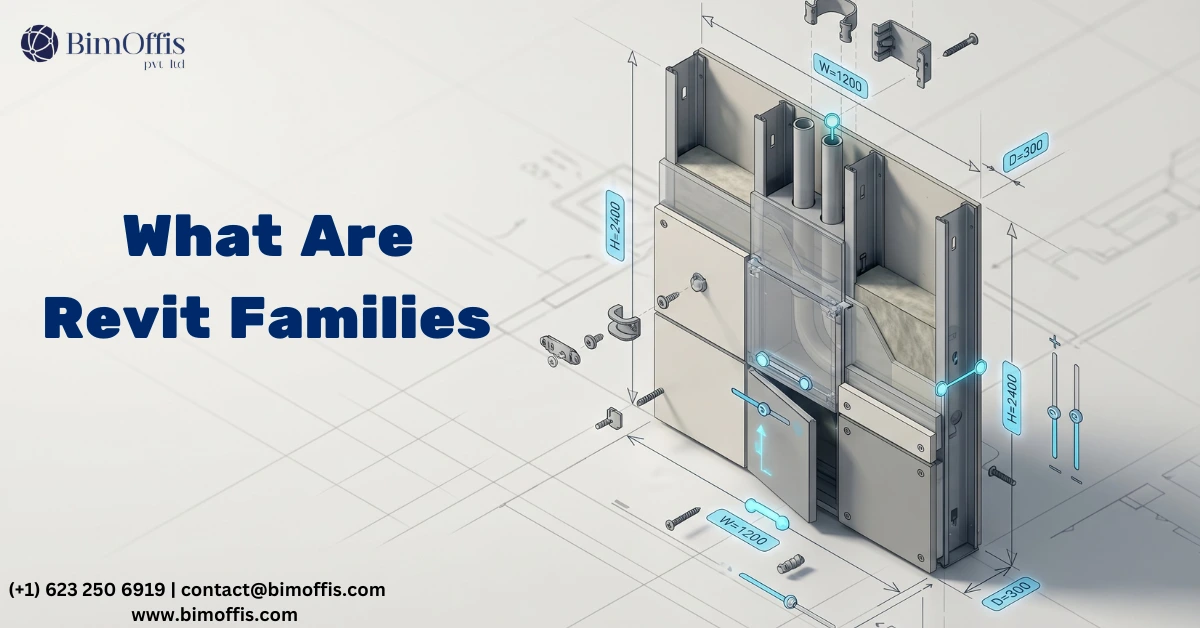
A Revit family contains information. It knows its size, category, placement behavior, and project data. Because of that, Revit models become much smarter than standard 3D models.
The Three Main Types of Families
System Families
System families already exist inside Revit. Walls, roofs, floors, and ceilings fall into this category. You cannot create them from separate files, but you can still modify their properties inside the project.
Loadable Families
This is where actual Revit family creation happens. You build these families in the Family Editor, save them separately, and load them into projects whenever needed.
As a result, loadable families give teams much more flexibility and control.
In-Place Families
In-place families are custom elements created directly inside a project. They help solve unique situations quickly. However, since they are not reusable, most teams avoid relying on them too often.
How Revit Family Creation Actually Works
Many tutorials make family creation look perfectly organized. Real projects are usually less clean than that. Still, following the right process makes a huge difference.
Start With the Correct Template
Before modeling anything, Revit asks you to choose a template. Most beginners simply pick something that looks close enough and continue working.
Unfortunately, that decision often creates problems later.
The template controls category settings, hosting behavior, scheduling, and default parameters. Therefore, choosing the wrong template can make the family behave incorrectly inside the project.
Spending a few extra minutes here saves a lot of frustration later.
Set Up Reference Planes First
Before creating geometry, set up reference planes properly.
Think of reference planes as the framework that controls the family. Dimensions, constraints, and geometry all depend on them.
Without strong reference planes, families usually break when dimensions change. That is why experienced Revit users always build the structure first before modeling details.
Parameters Make Families Flexible
This is where Revit families become truly powerful.
Parameters allow one family to handle multiple sizes, materials, and configurations without rebuilding the object every time.
For example:
- A single door family can support different widths and heights
- Materials can change directly from project properties
- Visibility settings can control detail levels automatically
Because of parameters, families become reusable tools instead of static 3D objects.
Type Parameters vs Instance Parameters
Type parameters affect every object of the same type across the project.
Instance parameters only affect the selected element.
Understanding this difference early makes family creation much easier later on.
Keep the Geometry Simple
One common mistake is over-modeling.
Beginners often add tiny details that never appear in actual construction drawings. While detailed geometry may look impressive, it also makes project files heavier and slower.
Instead, focus on what the family truly needs.
A clean and lightweight family performs much better in real projects than an overly detailed one.
Why Good Revit Families Matter
Bad Families Create Bigger Problems Later
Poorly built families do more damage than most people realize.
For instance, incorrect categories can break schedules. Heavy geometry slows down the model. Unstable parameters create coordination problems for the entire team.
On the other hand, well-built families improve project performance significantly.
They schedule correctly, appear properly in views, and behave consistently across the project.
A Good Family Library Saves Time
The first family always takes the longest to create. However, once it is built properly, the same family can be reused across multiple projects.
Over time, this saves a huge amount of work.
That is why firms with strong family libraries usually move faster and produce cleaner BIM documentation.
Common Mistakes to Avoid
A few mistakes appear again and again during family creation:
Choosing the Wrong Template
Using a template that feels “close enough” often creates issues later.
Skipping Visibility Settings
Heavy geometry should not appear in every detail level.
Hardcoding Dimensions
Dimensions should use parameters whenever possible.
Adding Unnecessary Detail
If nobody will ever see the detail in drawings, it probably does not need to be modeled.
Final Thoughts
Revit family creation may not be the most exciting part of BIM, but it affects almost everything inside a project.
Well-built families improve schedules, coordination, documentation, and overall model performance. More importantly, they reduce many of the small problems that slow teams down during real projects.
So instead of rushing through family creation, take time to build families that are simple, flexible, and easy to manage.
That extra effort pays off on every future project.
Ready to find out what your project will cost? Find out here.
Frequently Asked Questions from Clients
What is a Revit family?
A Revit family is a smart object you place in your model, like a door, window, column, or fixture. It carries geometry, size, and data all in one place.
How many types of Revit families are there?
Three System families (built into Revit), Loadable families (you create and reuse), and In-Place families (one-time use inside a project).
Do I need to create families from scratch every time?
No. Once you build a family, you can reuse it across any project. That’s the whole point: build it once, use it forever.
What is the Family Editor?
It’s the workspace inside Revit where you build and edit loadable families. Think of it as a separate environment just for creating components.
What's the difference between Type and Instance parameters?
Type parameters change all elements of that family type at once. Instance parameters change only the one element you’ve selected. Simple as that.
Can one family have multiple sizes?
Yes, and that’s the beauty of it. One well-built family can handle dozens of size variations through parameters. No need to build a new family for every dimension.